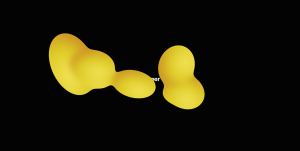
With a few lines of HTML, CSS and JavaScript you can put a soft, waxy blob inside an ordinary div that behaves like a lava lamp. When the mouse is over it, it follows the cursor. On a phone it moves to wherever you last touched the screen. When nobody is steering it, it slowly rises, sinks and melts into itself, just like the wax in a real lava lamp.
In this post I explain how the effect works and how to build it yourself. No libraries, no canvas and no WebGL: just a few divs, one SVG filter and one requestAnimationFrame loop.
The basic idea
The blob isn’t really one shape, it’s seven ordinary circles. One is the main, larger circle and the rest are smaller “satellites”. Each circle is an absolutely positioned div that JavaScript moves with transform. A filter melts all the circles into one mass, so the eye sees a single soft object.
The HTML is minimal. The outer div is the frame, the inner one is the layer the filter is applied to. The script adds the circles.
<div class="lava" id="lava">
  <div class="lava__blobs"></div>
</div>
The CSS makes the frame clip anything that sticks out, and makes every circle an actual circle:
.lava {
  position: relative;
  overflow: hidden;
  touch-action: pan-y;
}
.lava__blobs {
  position: absolute;
  inset: 0;
  filter: url(#lava-goo);
}
.lava__blob {
  position: absolute;
  left: 0;
  top: 0;
  border-radius: 50%;
  will-change: transform;
}
The filter has to sit on the shared layer, not on each circle. That’s the only way the circles can merge with each other.
The goo filter trick
The merging is done by an SVG filter in two steps: first it blurs everything, then it sharpens the edges again. The filter can live anywhere on the page, and the CSS calls it with url(#lava-goo).
<svg width="0" height="0" style="position:absolute" aria-hidden="true">
  <filter id="lava-goo">
    <feGaussianBlur in="SourceGraphic" stdDeviation="16" result="blur"/>
    <feColorMatrix in="blur" mode="matrix"
      values="1 0 0 0 0
              0 1 0 0 0
              0 0 1 0 0
              0 0 0 26 -11"/>
  </filter>
</svg>
feGaussianBlur smears the circles. When two circles are close, their blurred edges overlap, so the opacity between them is higher than at the outer edge.
feColorMatrix then leaves the colours alone and boosts the opacity hard. The last row means: new opacity = old × 26 − 11. Anything that was even slightly opaque becomes solid, and everything else disappears. The result is a sharp edge around the whole merged shape, with soft “bridges” between the circles.
These two numbers control the look. A larger stdDeviation gives thicker bridges and stickier wax. The ratio of 26 to −11 decides how sharp the edge is and where exactly it runs.
Lava lamp motion
When nobody is steering the blob, each circle moves along its own sine path. Each one gets random values when it’s created: how far it drifts left and right, how far up and down, how fast, and at which phase it starts.
blobs.push({
  ax: rand(0.12, 0.34),  // horizontal drift
  ay: rand(0.28, 0.40),  // vertical drift
  sx: rand(0.10, 0.25),  // horizontal speed
  sy: rand(0.06, 0.16),  // vertical speed
  px: rand(0, Math.PI * 2),
  py: rand(0, Math.PI * 2)
});
From these, every frame works out where the circle should be:
const lx = W * (0.5 + b.ax * Math.sin(t * b.sx * 2 + b.px));
const ly = H * (0.5 + b.ay * Math.sin(t * b.sy * 2 + b.py));
Because every circle has a different speed and phase, their paths never repeat in the same way. The circles meet now and then, merge and separate again, which is the whole point of a lava lamp. The vertical speeds are deliberately lower than the horizontal ones, so the motion feels like warm wax slowly rising.
Following the cursor
We read the mouse position from pointermove and convert it to coordinates inside the div
function setTarget(e) {
  const b = el.getBoundingClientRect();
  target.x = e.clientX - b.left;
  target.y = e.clientY - b.top;
}
The main circle aims straight at the cursor. The satellites don’t. Each satellite follows the circle in front of it, with a small orbiting offset. This creates a chain that trails behind the cursor like a tail, so the blob feels alive rather than rigid.
if (i === 0) {
  fx = target.x; fy = target.y;
} else {
  const prev = blobs[i - 1];
  const o = base * b.orbit;
  fx = prev.x + Math.cos(t * 1.3 + b.px) * o;
  fy = prev.y + Math.sin(t * 1.1 + b.py) * o;
}
No circle jumps to its target. Every frame it moves a fraction of the remaining distance, which is called linear interpolation, or lerp. To keep the motion equally fast on 60 Hz and 120 Hz screens, the fraction is adjusted to the time between frames:
const ease = (k, dt) => 1 - Math.pow(1 - k, dt * 60);When the mouse leaves the div (pointerleave), the blob stops following and returns to lava mode.
Touch on mobile
On a phone there’s no cursor hovering over the div. So the blob follows the last touch instead: on pointerdown, pointermove and pointerup we set the target and a timer for how long the blob should stay there.
const TOUCH_HOLD = 4000; // ms

el.addEventListener('pointerdown', e => {
  setTarget(e);
  if (e.pointerType !== 'mouse') holdUntil = performance.now() + TOUCH_HOLD;
});
Pointer Events cover mouse, finger and stylus with the same code, and e.pointerType tells you which one it is. The blob keeps following as long as this is true:
function isFollowing(now) {
  return mouseInside || now < holdUntil;
}
After four seconds without a touch, the blob goes back to lava mode. If you want it to stay at the last touch forever, set TOUCH_HOLD = Infinity.
The CSS property touch-action: pan-y lets visitors still scroll the page vertically over the div. Set it to none and you get full control over dragging, but the page will no longer scroll over the div.
Smooth transitions and stretching
If the blob switched between modes all at once, it would jump. So we keep a value w between 0 and 1: 0 is pure lava mode, 1 is pure following. Every frame w moves slowly towards the value we want, and each circle’s final target is a blend of both positions:
w = lerp(w, isFollowing(now) ? 1 : 0, ease(following ? 0.08 : 0.02, dt));

const tx = lerp(lx, fx, w);
const ty = lerp(ly, fy, w);
The return to lava mode is deliberately slower than the switch to following. The blob reacts quickly to the mouse, then lazily “peels away” and floats off.
The last detail is stretching. From the movement in the last frame we work out speed and direction. We rotate the circle towards the direction of motion, stretch it along that line and squeeze it across, so its area stays roughly the same:
const v = Math.hypot(b.vx, b.vy) / (dt * 60);
const s = 1 + Math.min(v * 0.012, 0.35);
const a = Math.atan2(b.vy, b.vx);

b.el.style.transform =
  `translate(${x}px, ${y}px) rotate(${a}rad) scale(${s}, ${1 / s})`;
The 0.35 cap stops a circle from turning into a line when you flick the mouse fast.
Performance and accessibility
The animation moves the circles only with transform, which the browser can draw without recalculating the page layout. will-change: transform makes that even easier for it.
When the div isn’t visible, the animation doesn’t run. An IntersectionObserver stops the loop when the div leaves the screen and starts it again when it comes back. That way the effect doesn’t drain the battery when nobody is looking at it.
A ResizeObserver recalculates the circle sizes whenever the div changes size, so the blob works in any layout, from a wide screen to a phone.
For visitors who have reduced motion turned on in their system settings, the lava slows down to 30 % and stretching is switched off:
const reduceMotion = matchMedia('(prefers-reduced-motion: reduce)').matches;
const speed = LAVA_SPEED * (reduceMotion ? 0.3 : 1);
Wrapping up
The whole effect rests on three ideas: several circles merged into one mass by an SVG filter, sine paths for the lava motion, and blending two targets with a single value w. Everything else is settings you tweak to fit your page.
A few ideas for taking it further:
- Tie the blob’s colour to a CSS variable and change it per section of the page.
- On click or tap, let a smaller droplet split off the blob and float away.
- Instead of the mouse, have the blob follow the element that currently has focus, which helps keyboard navigation.
The complete code is a single HTML file you can copy into your project and adapt.